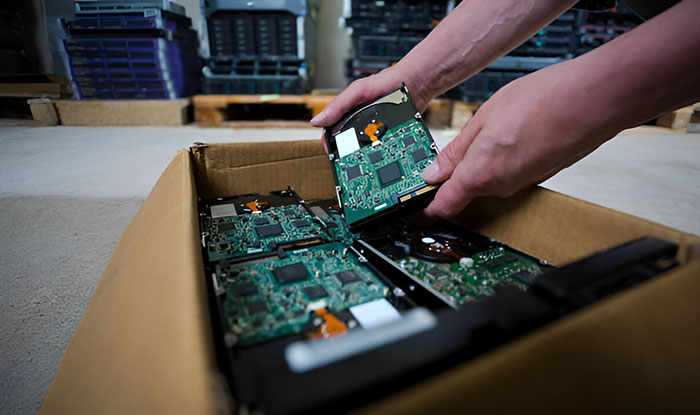
Your hard drive holds more information than you think. Over the years, it accumulates data such as personal information, login details, old downloads, photos, videos, and more. You may forget the files on your laptop, but your hard drive doesn’t.
This makes privacy especially tricky because even a small file you forgot about can cause trouble if it falls into the wrong hands.
That’s why the way you dispose of a hard drive matters just as much as how you use it. Throwing it in the trash or just letting it sit in a drawer by your bed aren’t safe options. An empty drive can still hold data, and disposing of it properly is the only way to neutralize threats.
Before you rush to destroy your hard drives, let’s start with the basics and learn what your hard drive really stores.
What Your Hard Drive Really Stores?
Your hard drive works quietly and builds a layered history of everything you ever used on your computer. That includes everything you ever saved, installed, or downloaded. Even if you think you have cleared your devices, chances are that you’ve only scratched the surface, as exposed data can still circulate in the hidden part of the internet long after deletion.
Layers Of Data Left Behind On Old Drives
Here is a simple breakdown of all the data that sits inside your drive long after you stop using it.
• Operating System
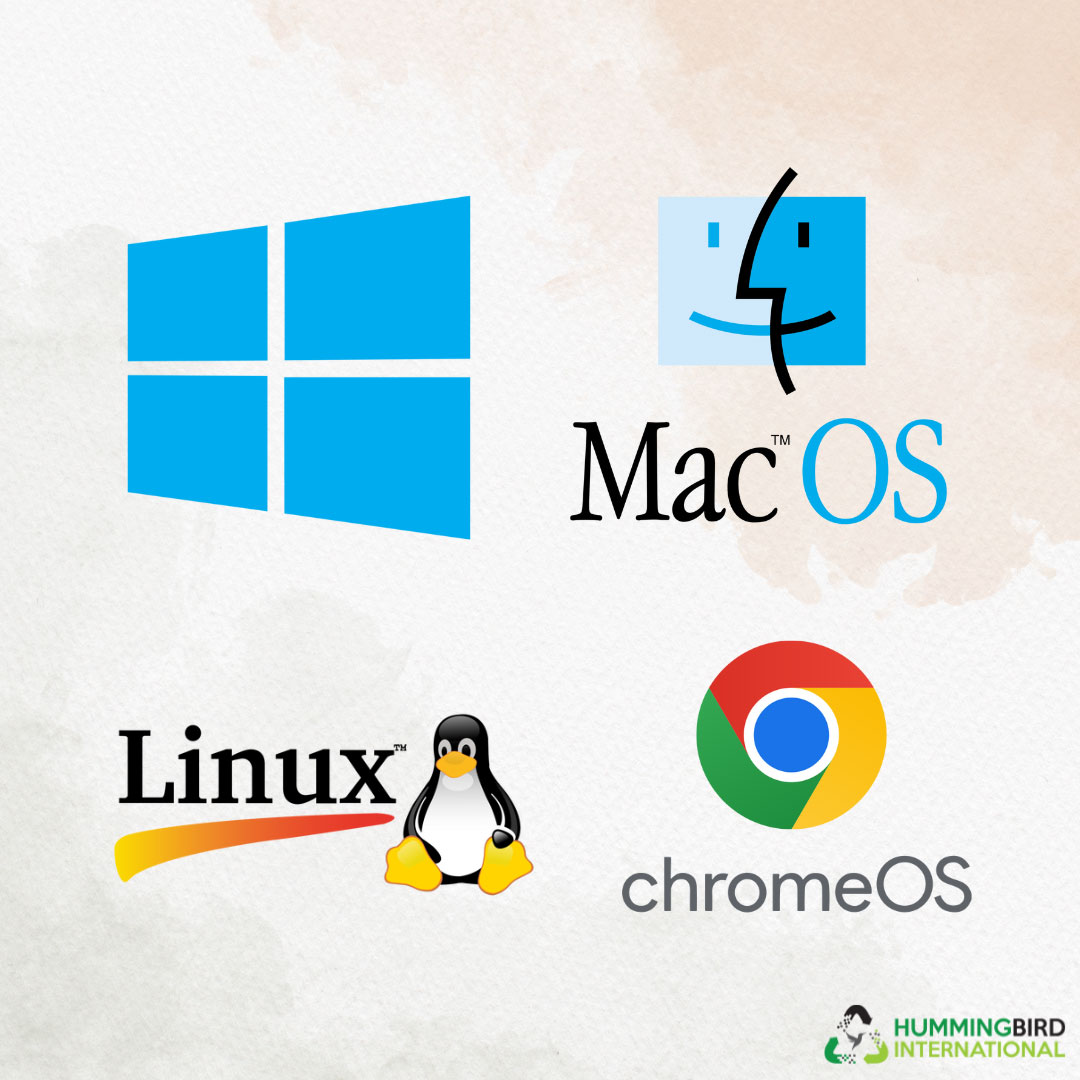
First and foremost, there is the operating system, which manages a computer’s hardware, software, components, and other resources. Four of the most used operating systems in the market are Windows OS, MacOS, Linux, and ChromeOS. Sometimes, users may experience performance issues on a slow macOS, especially if the system is running low on storage or overloaded with background processes. The operating system has three main components.
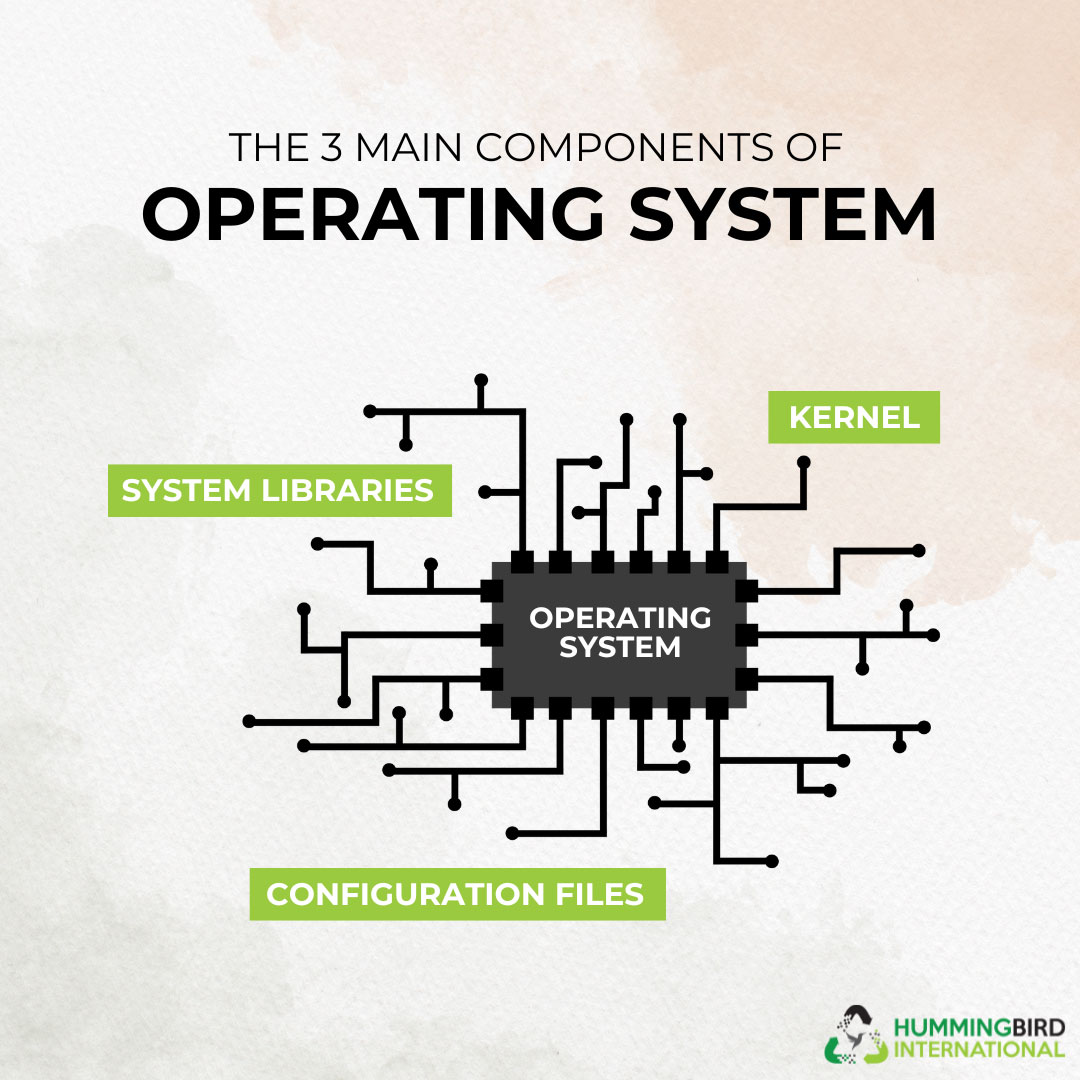
- The first is Kernel, the core part responsible for managing system resources.
- The second are System Libraries which are pre-written codes that are used by applications to perform.
- The third and last one is Configuration Files, which handle OS behavior and hardware interactions.
• System Files

Image Source: iStock/Galeanu Mihai
The next thing you can find on a hard drive is the System Files, which are essential for an OS’s optimum functioning, performance, and stability. They do not directly contact the users and run on the back end. The Examples of System Files are:
- Drivers, such as printers, network adapters, etc., help the OS communicate with the hardware.
- Configuration Files that store different settings.
• User Data

Image Source: iStock/MTStock Studio
The next and most important one is the User Data. It includes all the personal and other files you create or save on your computer. You must be very careful about what to save and what not to save on the hard drive. If you change your computer or give it away, properly destroy your data. Still, some traces can remain, which is where professional data destruction services come in. They help you discard the hard drive correctly, destroying all the data permanently while keeping environmental safety in check. In addition to physical storage devices, understanding the difference between public and private cloud storage solutions is crucial. Public clouds offer scalable resources shared among multiple users, which can be cost-effective but may raise concerns about data security and compliance. Private clouds, on the other hand, provide dedicated environments for a single organization, offering greater control and enhanced security measures. Recognizing these differences is essential when considering where and how to store sensitive data. The different types of User Data found on an old hard drive can be:
- Files & Documents: These include text documents, presentations, spreadsheets, PDFs, and shared files.
- Media Files: These include photos, videos, screenshots, songs, and other media. If you’re working with large video files, using a video compressor can help reduce file size without losing quality, making them easier to store and share.
- Downloads: The files or documents you download from the internet, like software, images, etc.
• Applications

Image Source: iStock/FreshSplash
Applications include the programs and files you install to perform specific tasks on your computer. They can be for productivity, creativity, entertainment, work, etc. Some examples of application files present on a hard drive are:
- Software like Microsoft Office Suite, Adobe Creative Suite, etc.
- Web Browsers like Edge, Chrome, Safari, etc.
- Games and Gaming Platforms like Steam, emulator files, and other standalone packages.
• Backup Files

Image Source: iStock/hanieriani
These are the saved instances of your system that copy data to prevent loss in case of any malfunction, virus, accidental deletion, or corruption. There are two types of backups you can create:
- One is the Full Backup which copies all of the data and preferences.
- The second is the Incremental backup which only saves the data that has been updated or changed since the last backup.
What You Need To Know About Hard Disks
The most important components of a computer are its storage devices. This is where your files, programs, and operating systems exist. Even though all drives basically serve the same purpose, they work in different ways and offer different levels of efficiency.
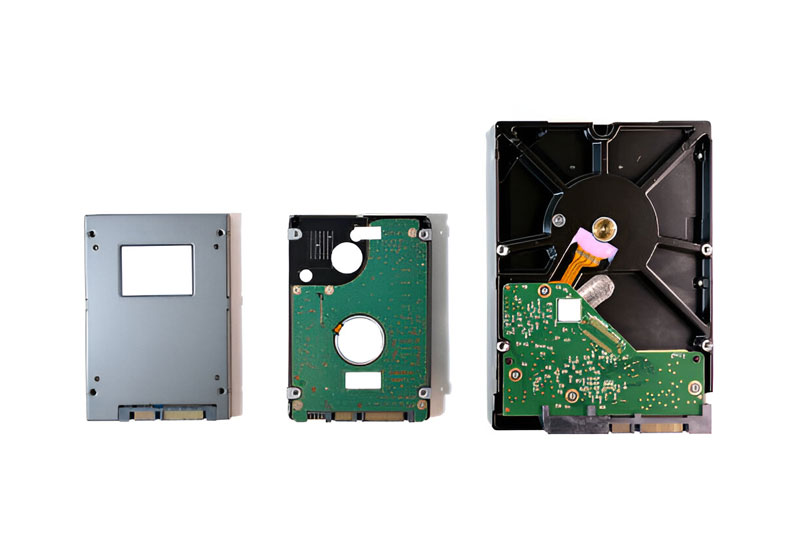
Image Source: iStock/anakeseenadee
Here are three of the most common types of storage drives and all you need to know about them.
| Drive Type | How It Works | Typical Capacity | Speed Range (Read/Write) | Best For |
| HDD | Uses spinning magnetic disks to store data |
500GB – 20TB (1TB–2TB for most users) |
80 MB/s – 160 MB/s |
Budget users, large file storage |
| SSD (SATA & NVMe) | Uses flash memory (no moving parts) |
120GB – 30TB (250GB–500GB common) |
SATA: 500–600 MB/s, NVMe: 3000–7500 MB/s |
Fast performance, quick boot times, modern systems |
| SSHD | Mixes HDD storage with a small SSD cache |
500GB – 2TB (1TB–2TB common) |
131 MB/s – 139 MB/s |
Balanced option for speed and storage at a lower cost |
Why Is Simply Deleting Not Enough?
Deleting a file only removes the visible version; the data still exists in the depths of your storage. Until new data overwrites it, your data stays as is. But in most cases, this overwriting doesn’t happen, and large portions of your old files are still recoverable.
This is why a formatted drive can still leak sensitive information. So just about anyone with basic recovery software can leak sensitive information. For businesses, this can create compliance risks, while for individuals, it may result in identity theft or even financial fraud.
Safe Hard Drive Disposal Methods
Once you understand that deleting isn’t enough, the next step is choosing a method that truly destroys your data. But not all disposal methods suit you. Some are good for home use, while some are best suited to businesses. Here are some of the most reliable and safe hard drive disposal methods.
Physical Destruction
Physical destruction of a hard drive ensures that it is beyond repair and that the platters or memory chips are completely destroyed.
-
Drilling
Recyclers punch holes in the drives, rendering them useless.
-
Smashing
Heavy tools are used to crush the hard drives completely.
-
Shredding
Large-scale shredders break the drives into several small fragments.
-
Crushing
Crushing machines are used to ensure data is irretrievable.
-
Incineration
Incinerators melt the materials, completely destroying storage devices.
Degaussing
For magnetic drives, a recycler exposes them to strong magnetic fields that effectively erase data.
Data Sanitization
If you want to reuse or recycle your devices, you can opt for professional data wiping. This overwrites every bit of data with the help of certified software.
Final Takeaway
Old drives aren’t just old; they store years of personal, operational, and application data. Tossing these devices or storing them away won’t do you any good. Instead of ignoring data security, you must be proactive about it and take responsibility.
Certified data destruction at Hummingbird International ensures that your information stays private and e-waste is handled correctly.
Stay compliant and protect your data with Hummingbird International!
FAQs
1. What’s the difference between HDD, SSD, and SSHD when it comes to data destruction?
HDDs can be degaussed, shredded, or crushed. SSDs require data overwriting or specialized destruction methods, while SSHDs combine approaches.
2. Can old hard drives be recycled after data destruction?
Absolutely. Once properly wiped or destroyed, hard drives can be safely recycled, and valuable materials can be recovered.


Leave a Reply